

You've seen the little padlock in your browser thousands of times, sitting just before a website's address. Most of us have a vague sense that it means "safe" — and a lot of us were explicitly told to "look for the padlock." That advice is half right and, in one important way, dangerously misleading. Understanding what HTTPS and the padlock actually do, and what they don't, is one of the most useful pieces of online knowledge you can have. Here's the plain-English version.
What it is
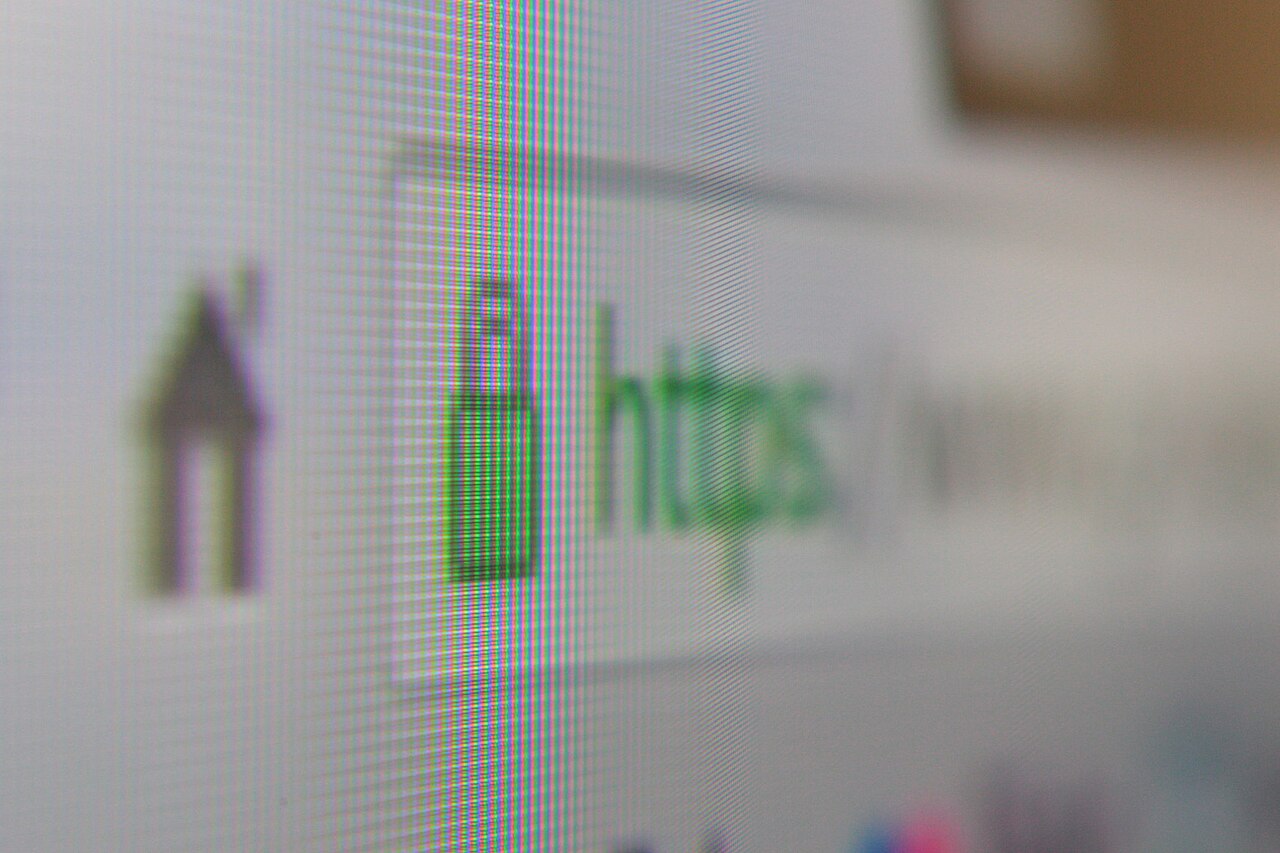
HTTPS is the secure, encrypted version of the protocol your browser uses to load websites — and the padlock icon is simply the sign that a page is using it. The letters stand for HyperText Transfer Protocol Secure. The older version, HTTP, sent web pages and anything you typed across the internet as plain, readable text. HTTPS wraps that exchange in encryption so it can't easily be read or tampered with along the way.
Think of the difference like sending a message. Plain HTTP is a postcard — anyone who handles it on the journey can read it. HTTPS is a sealed, locked box — the postal workers can carry it, but they can't see what's inside. The padlock in your address bar is the browser telling you, this page is in the locked box.
Today the overwhelming majority of websites use HTTPS by default, and browsers actively flag the ones that don't.
What HTTPS actually protects
HTTPS does two genuinely important jobs, and it's worth being precise about them.
- Privacy (encryption). Anything sent between your device and the website — your password, your card number, the page you're viewing — is scrambled. Someone snooping on the same network can't simply read it.
- Integrity (no tampering). The encryption also makes it very hard for anyone in the middle to alter the page or inject something into it without breaking the connection. What the site sent is what you receive.
There's also a small identity element: to use HTTPS, a site needs a security certificate, and the browser checks that the certificate is valid and matches the address. That confirms you're connected to the address shown in the bar, over a private channel.
This is why HTTPS matters most on public Wi-Fi — in a café, hotel or airport, where you're sharing a network with strangers. On those networks, HTTPS is what stops someone nearby quietly capturing what you type.
The myth: padlock does not mean honest
Here's the crucial point, and the one that trips up even careful people. The padlock proves your connection to the site is private. It says nothing about whether the site itself is trustworthy.
Security certificates are free, automatic and instant to obtain. That's great for the web overall, but it means anyone — including a criminal running a fake shop or a phishing page — can put a padlock on their site in minutes. A scammer's lookalike banking page will quite happily show a padlock. The connection to that fake page is genuinely encrypted; it's just encrypted between you and a criminal.
The accurate way to read the padlock: "My connection to this address is private." It is not "this website is safe to trust." Those are two completely different questions.
So the old advice — "look for the padlock" — is necessary but badly incomplete. A missing padlock on a page asking for your details is a real warning sign. A present padlock is not a seal of approval. This is exactly the gap scammers exploit, which is why knowing how to spot a fake or scam website matters just as much as checking for HTTPS.
| The padlock DOES tell you | The padlock does NOT tell you |
|---|---|
| The connection is encrypted | Whether the site is honest |
| Data can't easily be read in transit | Whether the company is real |
| The certificate matches the address | Whether you'll get what you pay for |
| Tampering with the page is hard | Whether it's safe to enter details |
How to use this in practice
Knowing what the padlock means turns it into a genuinely useful tool rather than false comfort. A few simple habits:
- Never enter sensitive details without HTTPS. No password, card number or personal information should go into a page that isn't using HTTPS — your browser will usually label it "Not secure." This is non-negotiable on public Wi-Fi.
- Check the address, not just the padlock. The padlock confirms the connection; you must confirm the address is the real one. A padlock next to
paypaI-login.comis still a trap. Reading the URL carefully is the check that actually catches impostors. - Don't ignore browser warnings. If your browser throws up a certificate error or a "your connection is not private" page, take it seriously rather than clicking through. It often means something is genuinely wrong.
- Treat HTTPS as one layer. It protects data in transit, but it can't protect you from a dishonest site or a stolen password. Pair it with the rest of your defences.
That last point is the big one. HTTPS guards the journey your data takes; it can't guard the destination or your account. Strong, unique passwords in a password manager and a healthy wariness of phishing emails cover the gaps HTTPS leaves open. Together they form a far more complete shield than any single padlock.
A note on what's changed
It's worth knowing that the web has shifted under our feet. A decade ago, HTTPS was mostly reserved for login and checkout pages, and the padlock genuinely distinguished "secure" pages from ordinary ones. Now that nearly all sites — good and bad — use HTTPS by default, the padlock no longer separates the trustworthy from the rest. That's precisely why the old "look for the padlock" rule has aged badly, and why the real skill today is reading the address and judging the site, with HTTPS as the baseline you simply expect everywhere.
The bottom line
HTTPS is the locked box that keeps the data travelling between you and a website private and untampered — genuinely valuable, especially on public Wi-Fi, and something you should expect on every page where you enter information. But the padlock answers only one question: is this connection private? It does not tell you whether the site is honest, because scammers get padlocks too. Use HTTPS as your baseline, refuse to enter sensitive details without it, and then do the part the padlock can't do for you: check the web address and judge the site on its own merits.
Frequently asked questions
What does HTTPS mean?
HTTPS stands for HyperText Transfer Protocol Secure. It is the encrypted version of HTTP, the system browsers use to request and load web pages. The 'S' means the data exchanged between your device and the website is scrambled so others cannot easily read or alter it in transit.
What does the padlock icon mean?
The padlock in your browser's address bar indicates the page is loaded over HTTPS, so the connection is encrypted and the site has a valid security certificate. It confirms your connection to the site is private — but it does not confirm that the site itself is trustworthy or run by who you think.
Is a website with a padlock always safe?
No, and this is a common misunderstanding. Security certificates are free and easy to obtain, so scam and phishing sites often display a padlock too. The padlock tells you the connection is encrypted, not that the people behind the site are honest. You still need to check the web address and the site's legitimacy.
Is it safe to use websites without HTTPS?
For simply reading a page it is low-risk, but you should never enter sensitive information — passwords, card numbers, personal details — on a page that lacks HTTPS, because that data could be intercepted. This matters most on shared or public Wi-Fi. Modern browsers now warn you when a page is 'Not secure'.
Join in — free. Comments on Daily Junction are for members, so real names stay rare and bots stay out.
One field. We email you a 6-digit code — no password needed. Your comment is kept while you do it.
Under 13? You’ll need a parent’s OK first — it takes them one click.